What Is Kiosk Lockdown? Kiosk Mode Explained
Kiosk lockdown (kiosk mode) restricts an Android device to one app or an approved set of apps, hiding everything else. Here's how it works, single- vs. multi-app mode, and where it's used.
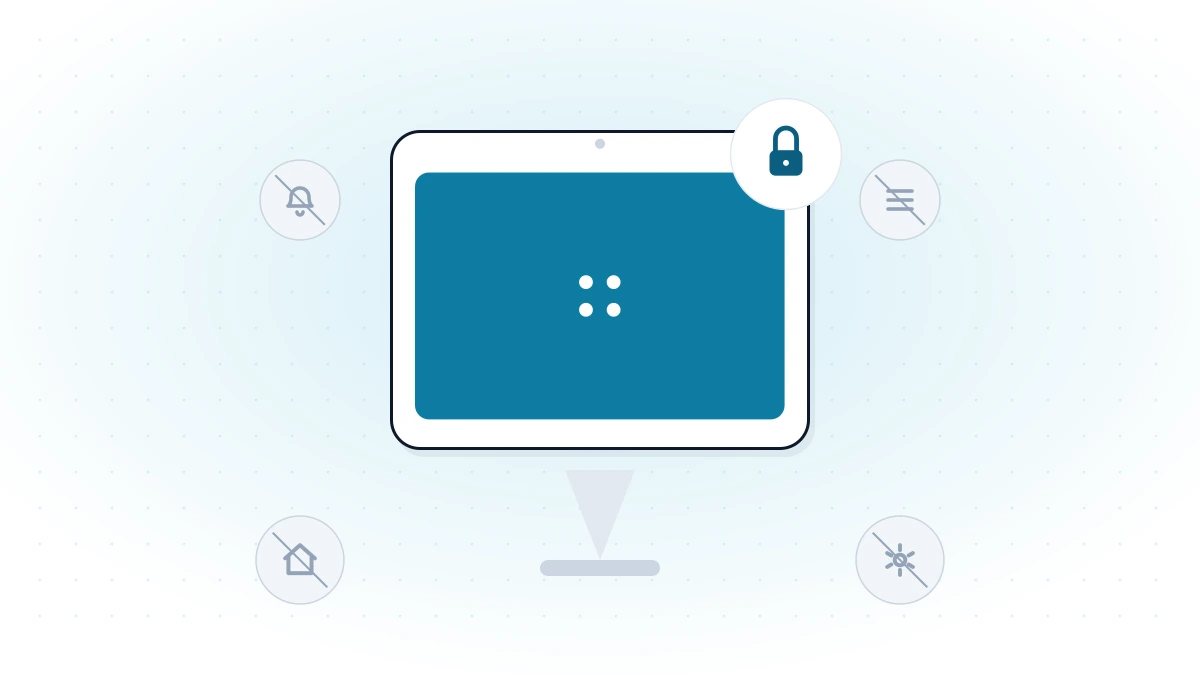
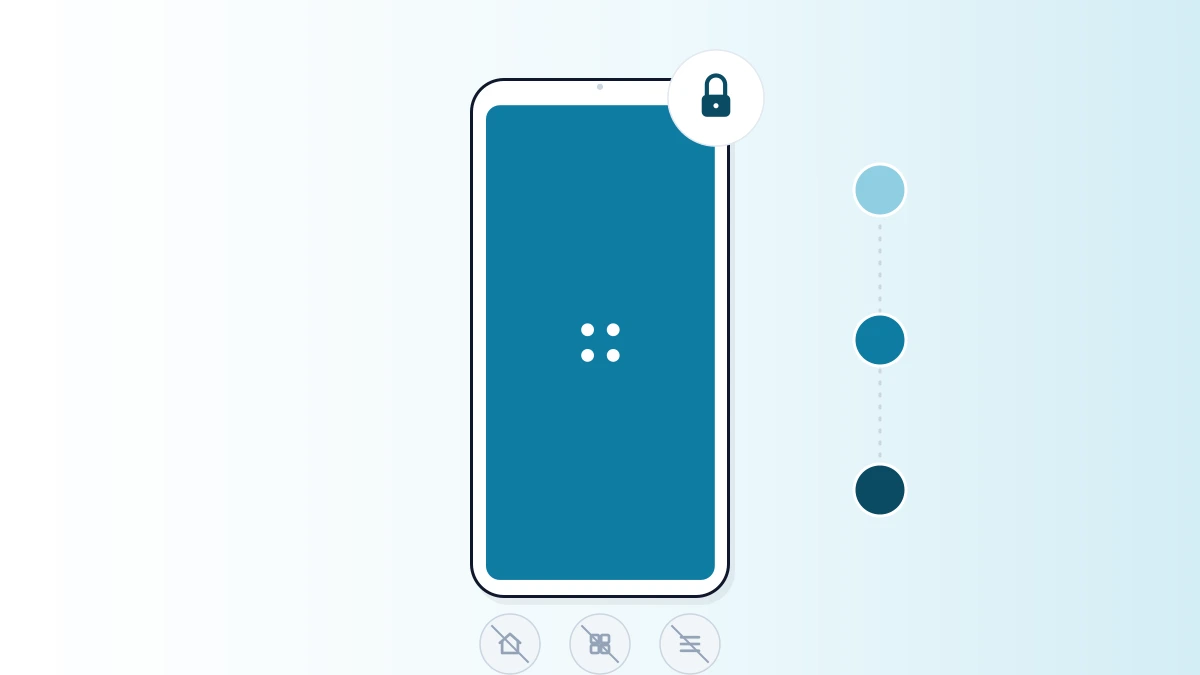
Kiosk lockdown, also called kiosk mode, restricts an Android device to a single app or a small, approved set of apps — hiding the home screen, notifications, and every other app so the device can only do what it's meant to do. It's the standard way businesses turn an off-the-shelf tablet or phone into single-purpose hardware: a self-checkout screen, a delivery driver's handheld, a digital sign, or a shared warehouse scanner.
Why Businesses Use Kiosk Lockdown
An unmanaged Android device left in a public space, a store, or a delivery driver's hand is a liability: someone can uninstall the working app, browse the open internet, drain the battery on games, rack up data charges, or simply misuse a device that isn't theirs. Kiosk lockdown removes that risk by making the device physically incapable of doing anything except its job. That matters most for:
- Shared or public-facing devices — self-checkout, ordering kiosks, visitor check-in — where anyone could pick the device up.
- Field and delivery devices — where a worker only needs one or two apps and shouldn't be distracted or able to install anything else.
- Digital signage — where the screen must never show a crash dialog, a notification, or an app switcher.
Single-App vs. Multi-App Kiosk Mode
| Single-app mode | Multi-app mode | |
|---|---|---|
| Apps available | Exactly one | A whitelisted set |
| Best for | Self-checkout, signage, dedicated ordering apps | Field techs, delivery drivers needing 2–5 tools |
| Home screen | Replaced entirely by the app | Simplified launcher showing only approved apps |
| App switching | – | |
| Typical device | POS terminal, kiosk tablet | Handheld scanner, rugged phone |
What a Kiosk Lockdown Policy Actually Controls
App whitelist
Only explicitly approved apps can run; everything else is invisible or blocked outright.
Hardware buttons
Home, back, and recent-apps can be disabled or remapped so a user can't exit the locked app.
Hidden background apps
Utility apps (a PDF viewer, a scanner tool) can run in the background without an icon or direct access.
Peripheral controls
Wi-Fi, Bluetooth, volume, and hotspot settings can be locked to a fixed configuration.
Notification & status bar
The notification shade and status bar can be hidden to prevent access to system settings.
Remote unlock
An administrator can lift or change the lockdown policy remotely, with no physical access to the device.
Kiosk Lockdown vs. Kiosk Browser
Kiosk lockdown controls which apps can run. A kiosk browser is the equivalent control for websites — it locks browsing to an admin-approved whitelist and disables tabs, incognito mode, and history, so a device meant for one workflow can't be used to browse the open internet. The two are usually combined: lock the device to a kiosk browser app, then whitelist only the URLs that app needs. See what a kiosk browser is and the features to look for in one for the full picture, or secure kiosk browsing and whitelisted sessions for how session-level restrictions layer on top.
Common Kiosk Lockdown Use Cases
- Self-service kiosks — ordering, check-in, or information screens in retail and hospitality.
- Point-of-sale terminals — locked to the POS app so staff (or customers) can't back out to the home screen.
- Digital signage — a display that only ever shows the intended content, with no crash dialogs or notifications visible.
- Delivery and field service — a driver's device locked to routing, proof-of-delivery, and communication apps only.
- Shared devices — warehouse scanners or loaner tablets that need to reset to a known-good state between users.
Retail teams specifically get more value from a slightly different framing of this same capability — see how kiosk mode improves the customer experience in retail. For public or shared hardware specifically, how to secure public-facing devices with a kiosk browser covers the setup in more depth, and self-service kiosk management covers running a fleet of them.
How to Set Up Kiosk Lockdown
- 1
Enroll the device
Bring the Android device under management through your MDM console (QR code or zero-touch enrollment for company-owned hardware).
- 2
Choose single- or multi-app mode
Pick exactly one app for dedicated hardware, or a short whitelist if the device needs to switch between a few tools.
- 3
Configure restrictions
Disable the home/recent-apps buttons, lock peripheral settings (Wi-Fi, volume, hotspot), and hide the notification shade.
- 4
Add a kiosk browser if needed
If the workflow needs web access, whitelist specific URLs through a kiosk browser instead of allowing the full internet.
- 5
Push the policy and verify
Apply the policy remotely and confirm the device behaves as expected — the console should show it as compliant in real time.
Want the fully detailed walkthrough instead of the summary above? See how to put an Android tablet in kiosk mode for the tablet-specific version, or single-app kiosk mode on Android for exactly what single-app mode disables and how to troubleshoot it.
LimaxLock Kiosk Lockdown
LimaxLock applies kiosk lockdown at the Android Enterprise (OS) level rather than through accessibility-permission workarounds, so the restrictions hold even if someone tries to force-close the management app. Single- and multi-app modes, hidden background apps, peripheral locking, and a built-in kiosk browser are all configured from one console, with changes reaching devices in real time. For the full feature set, see kiosk lockdown software.
Frequently Asked Questions
They describe the same thing. "Kiosk mode" is the more common consumer-facing term; "kiosk lockdown" (or "device lockdown") emphasizes the security angle — that everything outside the approved app or apps is inaccessible, not just hidden.