Single-App Kiosk Mode on Android: Setup Guide
Single-app kiosk mode locks an Android device to exactly one application — disabling home, recents, notifications, and settings at the OS level. Here's what it disables, what you need before you start, and the full setup steps.
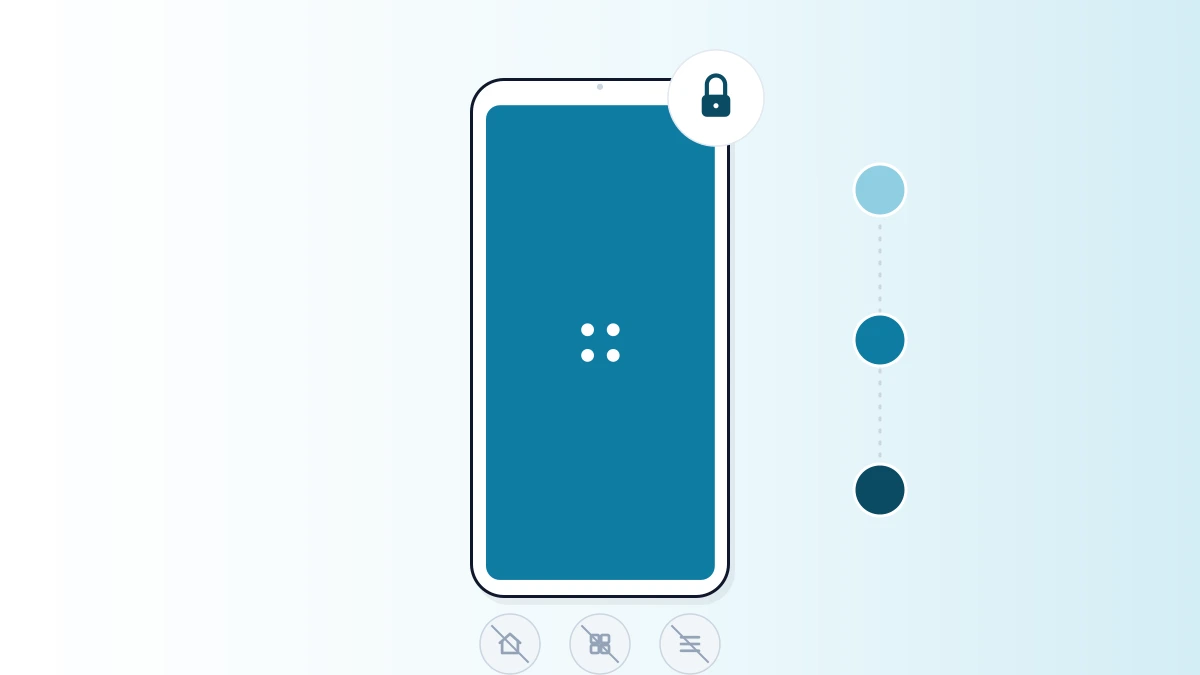
Single-app kiosk mode is the tightest form of Android lockdown available: the device boots straight into one application and can't do anything else — no home screen, no notifications, no way to reach Settings. It's the standard setup for self-checkout, digital signage, and any dedicated-purpose device where a user shouldn't be able to do anything except the one task it's there for.
What Single-App Kiosk Mode Actually Disables
"Locked to one app" undersells it slightly — a properly configured single-app kiosk closes off every path back to the rest of the operating system, not just the home screen.
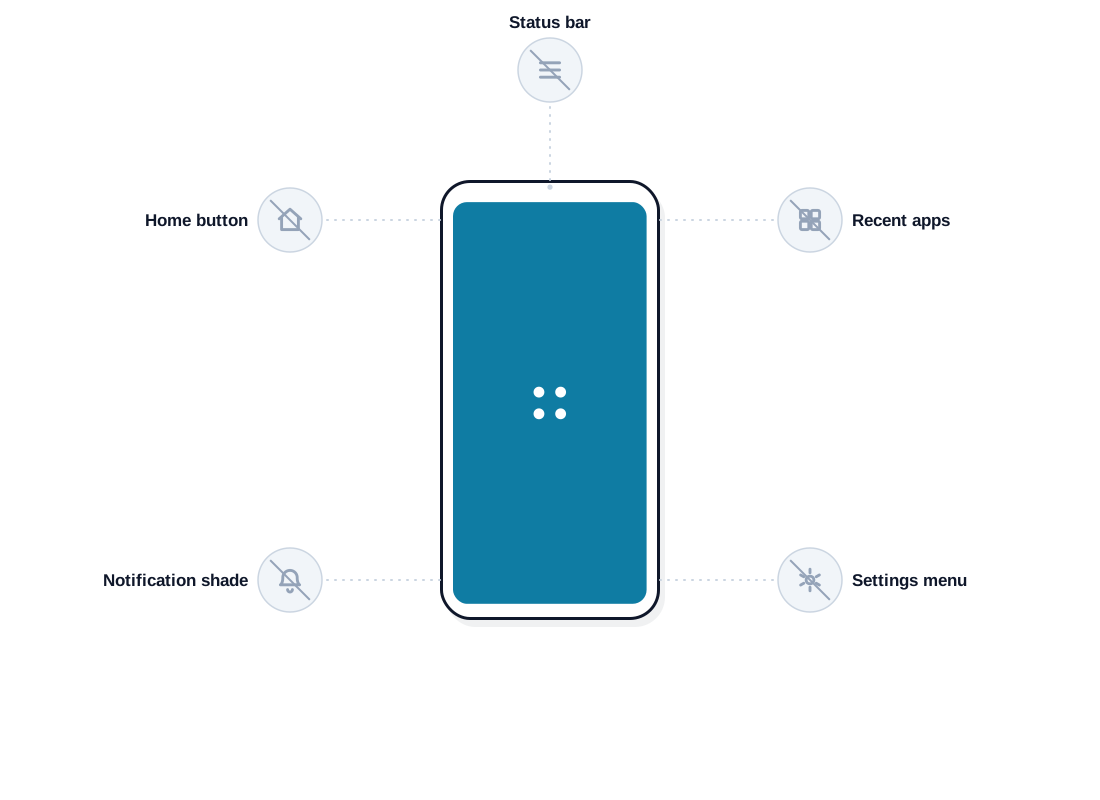
- Home button — disabled, so there's no screen to return to outside the locked app.
- Recent apps / app switcher — disabled, so nothing else can be brought to the foreground.
- Notification shade and status bar — hidden, so system notifications and quick settings aren't reachable.
- Settings app — blocked entirely, preventing any change to the device's configuration.
- Factory reset — blocked at the OS level on a fully managed device, not just discouraged by a warning.
Requirements Before You Start
- The device is provisioned as "fully managed" (Device Owner mode) for full OS-level enforcement — usually a factory-reset device enrolled via QR code or zero-touch before any personal account is added.
- The device is already enrolled in your MDM console.
- You know exactly which app needs to run, and it's installed or ready to deploy.
- You have a support plan for the device, since a locked-down device has no self-service way for a user to troubleshoot it themselves.
Step-by-Step: Set Up Single-App Kiosk Mode
- 1
Enroll the device
Bring the device under management via QR code for a one-off device, or zero-touch/Knox Mobile Enrollment for provisioning at scale — ideally before it reaches its final location.
- 2
Confirm fully managed status
Verify the device enrolled as fully managed (Device Owner), not a work profile — single-app mode's OS-level lockdown depends on this.
- 3
Select the app
Choose the one application the device should run from your app inventory, or deploy it first if it isn't installed yet.
- 4
Turn on single-app kiosk mode
Apply the single-app kiosk profile and confirm the selected app is set as the one that launches and stays in the foreground.
- 5
Configure supporting restrictions
Disable factory reset, hide the status bar, and lock down Wi-Fi/Bluetooth changes if the network is already configured for the deployment.
- 6
Deploy and verify
Push the profile to the device (or a group of devices) and confirm it boots straight into the app, ignores the home/recents buttons, and shows as compliant in the console.
How to Exit Single-App Kiosk Mode
There are exactly two ways out, both requiring administrator access: enter an admin PIN directly on the device, or send a remote unlock/exit command from the MDM console if the device isn't physically in front of you. Neither is available to whoever is holding the device — that's what separates real single-app kiosk mode from Android's built-in screen pinning, which anyone can exit with a button combination.
Single-App vs. Multi-App: When to Switch
Single-app mode is the right default for anything with exactly one job — digital signage, self-checkout, a dedicated ordering app. If a device genuinely needs to switch between a small number of tools, multi-app mode (a branded launcher showing only your approved apps) is the better fit instead of trying to force a multi-purpose workflow into a single locked app.
Common Issues and How to Fix Them
- Device drops back to a normal home screen after reboot — confirm it enrolled as fully managed (Device Owner), not a work profile; work profiles don't support OS-level single-app enforcement.
- Locked app doesn't relaunch after a crash — check that auto-relaunch is enabled in the kiosk profile, not just the initial launch-on-boot setting.
- Can't exit even with the admin PIN — verify you're using the current PIN from the console; a PIN reset from the dashboard resolves this without a factory reset.
- Notification shade is still partially reachable — some manufacturer skins add their own gesture shortcuts; check device-specific restrictions in addition to the standard kiosk profile.
Where Single-App Mode Is Used
- Self-checkout and point-of-sale terminals, locked to the transaction app.
- Digital signage and unattended displays that must never show a crash dialog or notification.
- Dedicated ordering kiosks in restaurants and retail.
- Check-in and visitor-registration tablets in lobbies and reception areas.
- Field and delivery devices locked to a single routing or proof-of-delivery app.
How LimaxLock Handles Single-App Kiosk Mode
LimaxLock enforces single-app kiosk mode at the Android Enterprise (OS) level on fully managed devices — not through an accessibility-permission workaround that a force-close or a crash could undo. The locked app relaunches automatically after a crash, a reboot, or a power cycle, factory reset is blocked outright, and exiting requires an admin PIN or a remote command from the console. It's included standard on every plan alongside multi-app and browser kiosk modes, so switching between them later doesn't mean re-provisioning the device. See kiosk lockdown software for the full feature set.
Frequently Asked Questions
The home button, recent-apps button, notification shade, status bar, and the Settings app are all disabled or hidden. Factory reset is blocked at the OS level on a fully managed device, so there's no way to back out of the locked app without administrator access.