How to Block Websites on Android [2026]: Step-by-Step Guide
Blocking websites on your phone isn't just about limiting access — it's about taking control of your digital experience. Here's every method that actually works, from built-in tools to whitelist-based MDM, plus a step-by-step setup.
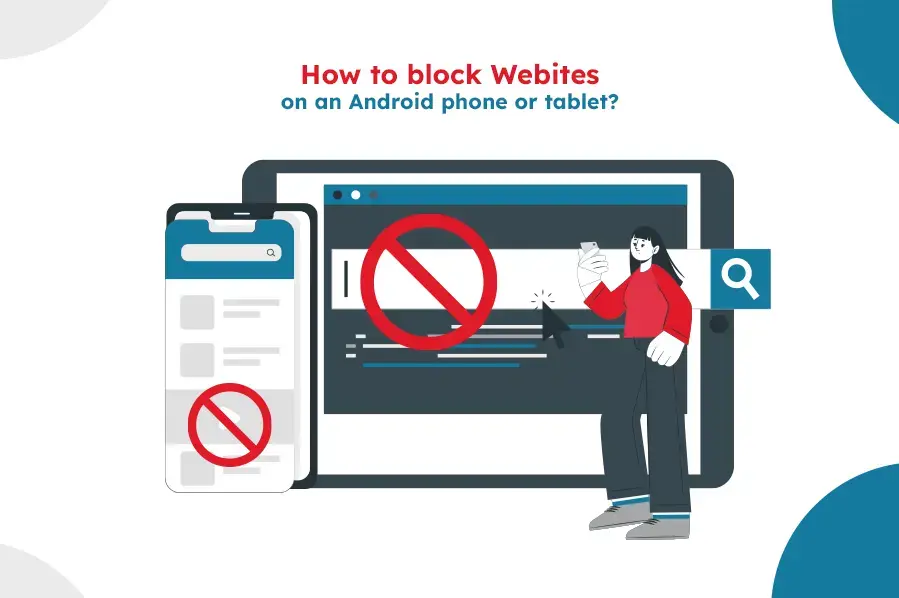
Blocking websites on your phone isn’t just about limiting access — it’s about taking control of your digital experience. Whether you want to avoid distractions during work, protect children from inappropriate content, or strengthen your device’s security, learning how to block unwanted sites can make a real difference. Android gives you several options to do this, from built-in settings to third-party apps, each suited to different needs. Let’s explore the most effective methods you can use.
How to block websites on mobile: reasons you should know
Of course, there are different use cases when it comes to blocking a website. It always comes down to protecting yourself from dangerous viruses, but at the same time, it can also streamline your experience. Here are some of the main reasons why you want to know how to block a website in Android.
- Blocking websites will help you prevent access to sites that can be a distraction. That’s very common in the enterprise world, where employees can waste time by going on websites that distract them from working.
- It’s a very good way to prevent virus or malware access in your business. Many times, malware infections come from accessing random websites, and it’s crucial to ensure that you are handling those problems appropriately and without any hassle.
- It also protects mobile devices from internet attacks. Mobile phones in particular, are known for being easier to attack, especially due to many users not having an anti-malware solution installed.
What methods can you use to block websites on Android?
As you learn how to block website Android, there will be a few inherent methods that work very well.
The built-in parental controls from Android are a good starting point, and there are third party apps on Google Play you can use as well.
If you’re looking to block a website on Android without using an app, there are a few methods that might actually work very well. Some of them have been traditionally used for this purpose, along with increasing the safety of your device.
- Using a firewall is going to help, mainly because you can choose what websites you can block from within that app. The Windows firewall is not as configurable, but paid firewall apps give you lots of leeway when it comes to choosing what sites to visit and what sites to block.
- Antivirus tools like BitDefender can also help, since they will block various websites as well.
- You can also go the extra route and install extensions that will boost your privacy. Those can also block websites, which in turn will make the experience better.
- VPN tools might also come in handy, since they allow you to automatically block suspicious websites. The problem is that you rarely have VPN tools to help you stop a specific website.
- However, the best option to consider when it comes to blocking sites across multiple company devices is mobile device management. It's the most effective approach because you control website access for every device on your network from one dashboard, instead of configuring each device individually.
Is it safe to use a third party website blocker?
The problem with any third party app is that you never know what they install or what type of methods they use to block websites. Some of those might be legit, others less so. Browser extensions that block websites, those in particular might have a lot of random stuff that you don’t know about.
Should you try to use Google’s SafeSearch?
SafeSearch is a very interesting service from Google. It’s a filtering feature that can block explicit content, but the problem is that it only allows you to block explicit results and that’s it. While you can do that, it won’t solve the issue you are facing, and that can be a problem. That’s why the best approach is to use a dedicated mobile device management software solutions such as LimaxLock MDM !
What is LimaxLock MDM, and how can it help?
LimaxLock is a professional mobile device management solution. With its help, you can manage Android access from a single dashboard. You can easily limit access to websites or provide access only to specific websites within your network. At the same time, LimaxLock aims to improve your company’s security while delivering much better control over your Android fleet. In doing so, you can safeguard important information while also boosting employee productivity.
Moreover, LimaxLock goes beyond that since it has a Kiosk mode where you can lock down your devices to a single app or multiple apps of your choice. There’s also an Enterprise App Store, a customized version of Google Play where you can install Android apps remotely but also host them specifically to fit your needs. Aside from the Kiosk Mode, you also have a Kiosk browser that will allow you to browse only whitelisted websites.
Lastly, LimaxLock also has mobile device management. You can remotely manage, monitor, and implement security solutions that fit the needs of your business. It can be difficult to control and handle all Android devices manually when you have even a small business, let alone a larger one. With LimaxLock, you can alleviate the process and keep it simple and consistent.
How to block website on Android with LimaxLock: step-by-step guide
Now that you know why blocking sites matters, here's how to set it up using LimaxLock's Kiosk Browser — whitelisting the specific sites your team needs rather than trying to block every bad one individually.
- 1
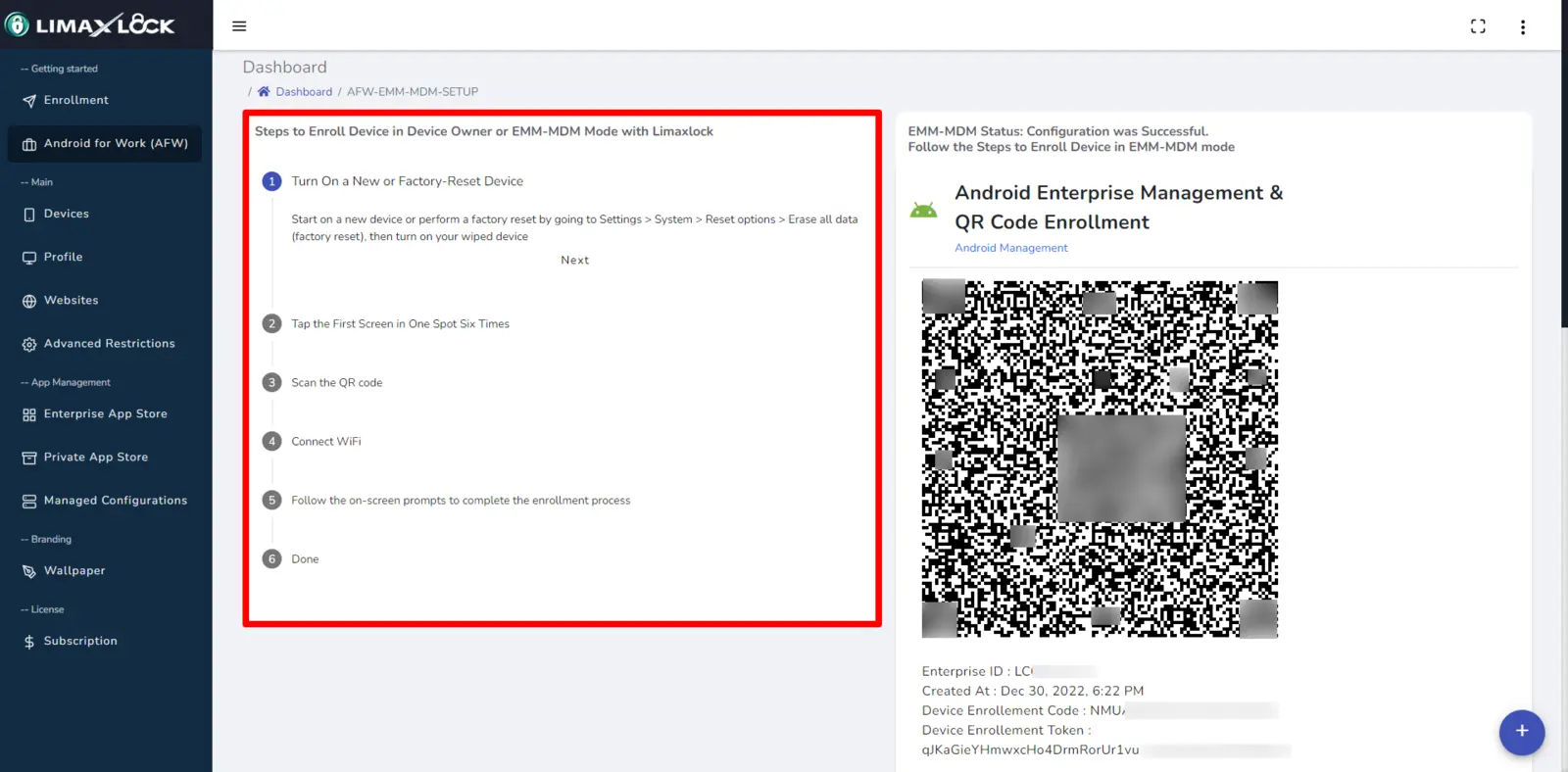
Enroll your devices
Log in to your LimaxLock account and go to the Android for Work (AFW) Enrollment section. Follow the on-screen instructions to bring your devices under management.
- 2
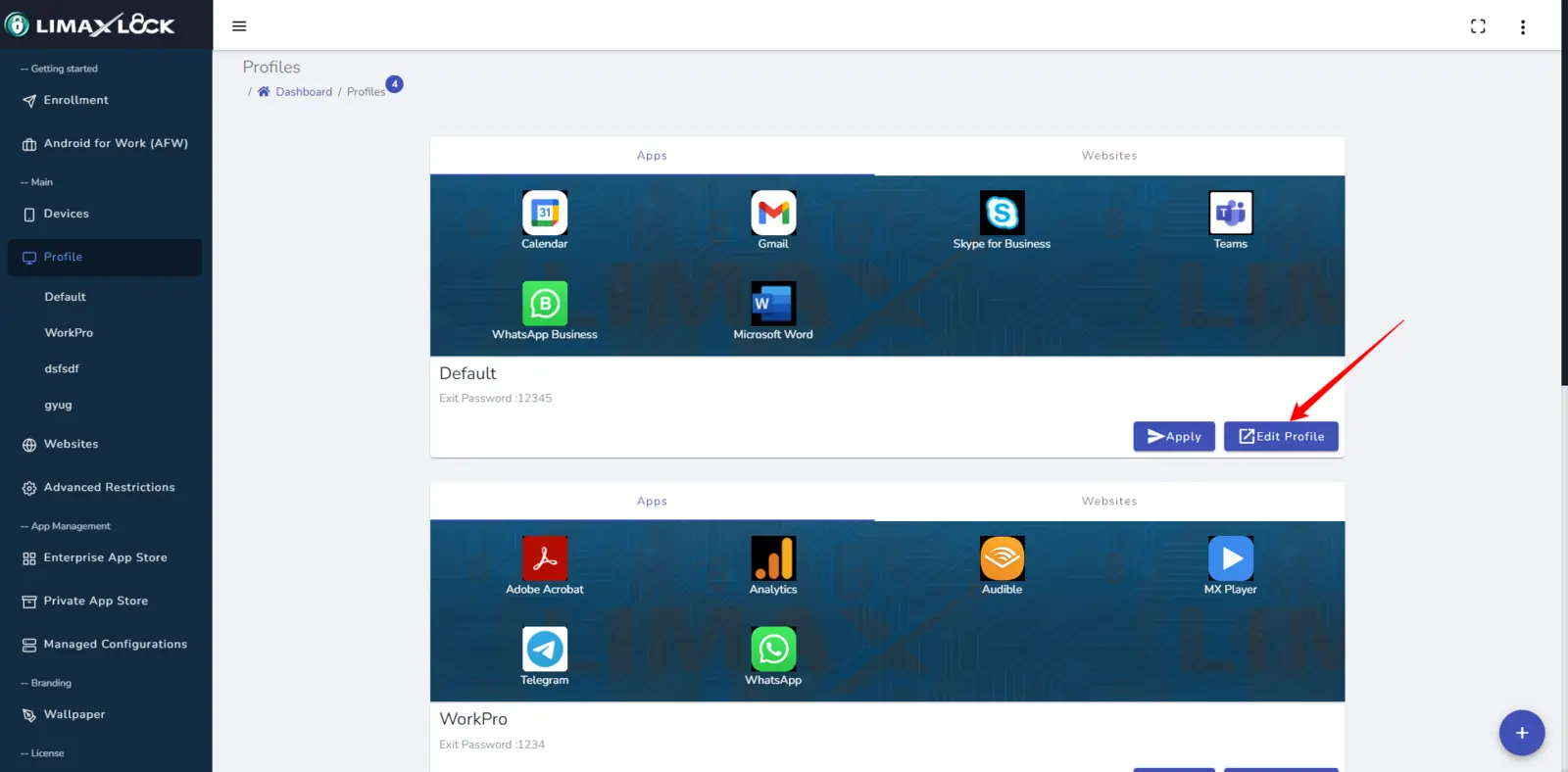
Create a profile
Set up a profile per department or user group, or a single company-wide profile — fully customizable, and app/website access can be changed at any time.
- 3
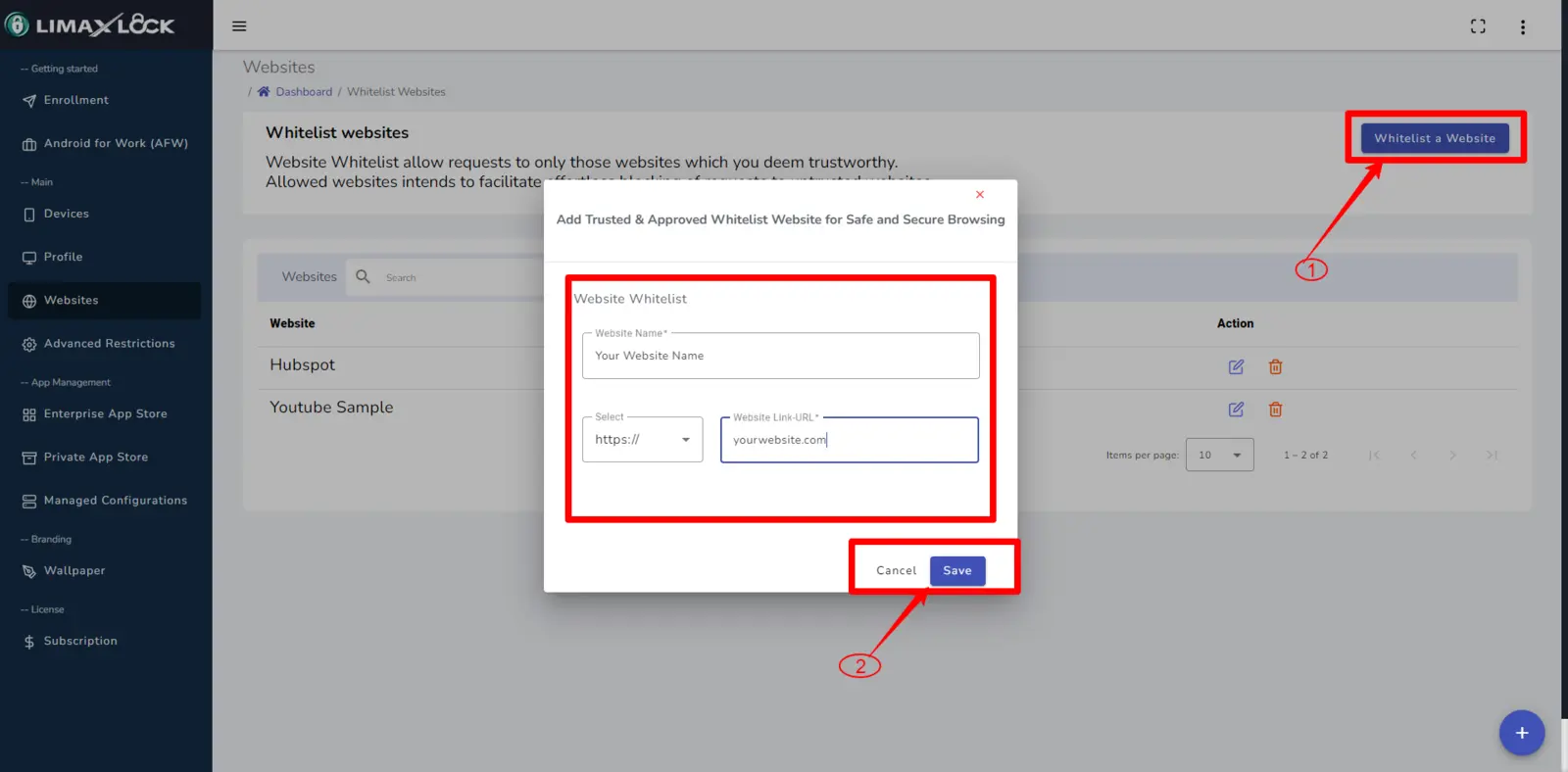
Add whitelisted websites
In the Websites section, add every site you want end users to access. Only admins can add to this list.
- 4
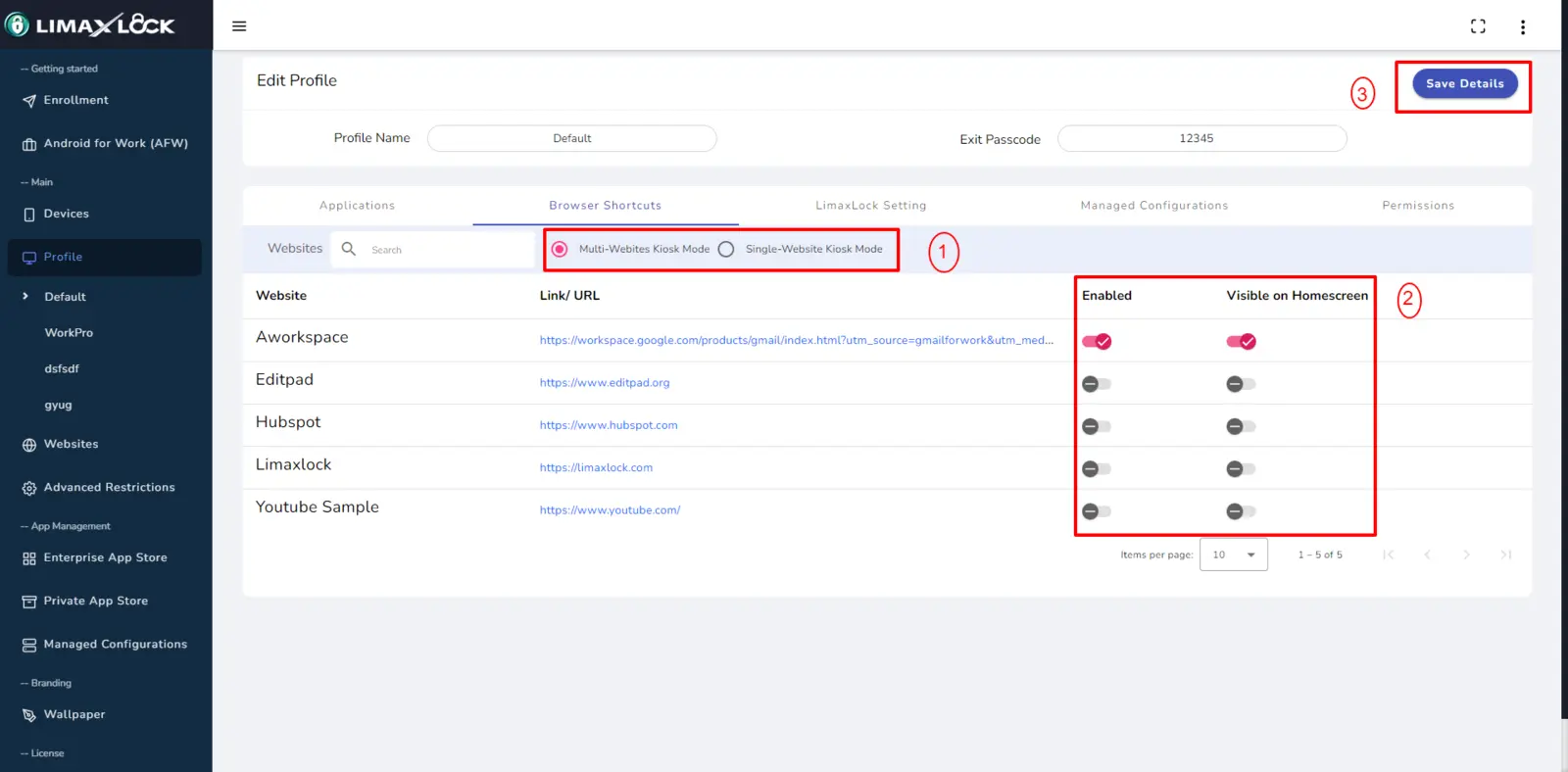
Apply the whitelist to a profile
Select the profile, click Edit Profile, and apply the whitelist — every device enrolled under that profile now has access only to those sites.
- 5
Choose single- or multi-website mode
Single-website mode locks the device to exactly one site; multi-website mode allows several. Access can be toggled on or off at any time, including on a schedule.
By whitelisting only the sites your team needs, dangerous or malware-hosting websites are unreachable by default, and time-wasting browsing during work hours is removed entirely rather than relying on employees to self-regulate.
Frequently Asked Questions
Android's built-in parental controls (via Family Link) or Google SafeSearch cover basic, single-device needs without installing anything extra. For finer control over specific sites, a browser extension or firewall app adds more granularity on one device.