How to Put an Android Tablet in Kiosk Mode
Putting an Android tablet in kiosk mode takes five steps: enroll it, pick single-app, multi-app, or browser mode, configure restrictions, and deploy. Here's the full walkthrough, including what to check before you start.
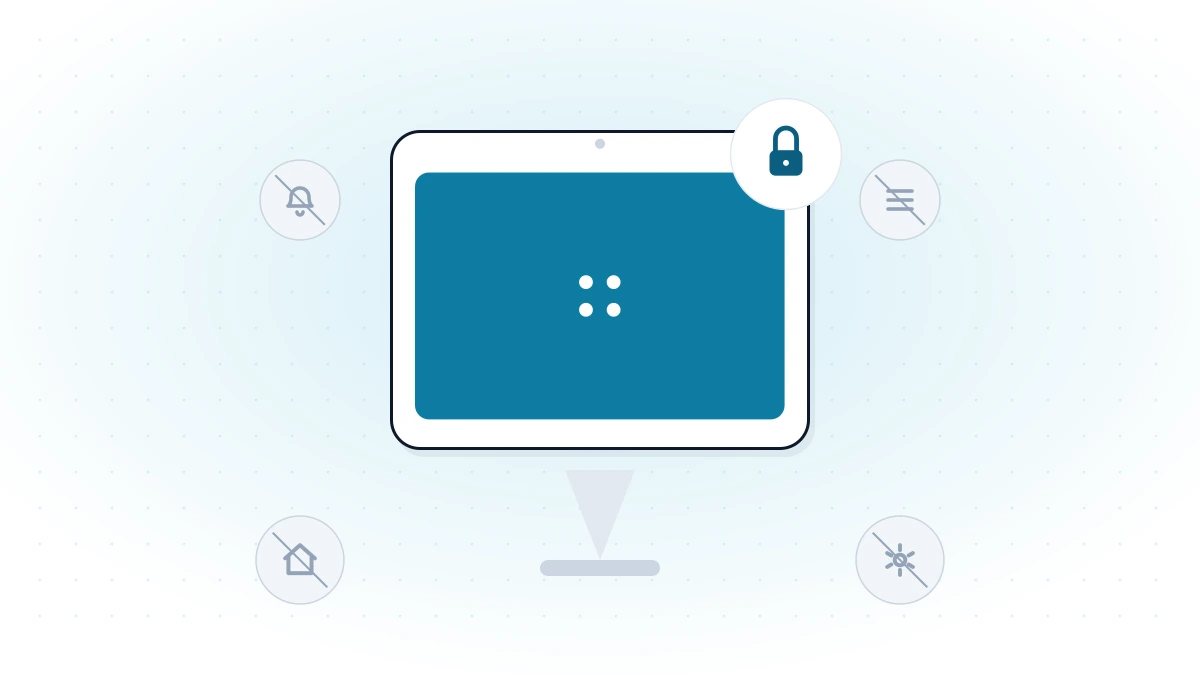
An Android tablet left unlocked in a lobby, a store, or a classroom is an open invitation to be misused — someone browses off-task, exits the app you built the deployment around, or drains the battery on something unrelated. Kiosk mode fixes that by locking the tablet to exactly the app (or apps) it's meant to run, with everything else made inaccessible. Here's exactly how to set it up.
Kiosk Mode Options for Android Tablets
Before you touch a setting, decide which mode actually fits the job — this determines everything that follows.
| What it does | Best for | |
|---|---|---|
| Single-app mode | Locks the tablet to exactly one application | Digital signage, self-checkout, a dedicated ordering app |
| Multi-app mode | Shows a branded launcher with a small, approved set of apps | Field techs or staff who need to switch between 2–5 tools |
| Browser (kiosk) mode | Locks the tablet to one site or an allowlist of approved sites | Web-based POS, check-in forms, booking pages |
If the tablet only ever needs to run one thing, single-app mode is the simplest and most locked-down option — see our dedicated single-app kiosk mode setup guide for the deeper walkthrough, including exactly what gets disabled. If it needs to run a handful of tools, multi-app mode is the better fit. If the job is entirely web-based, browser mode is usually simpler to maintain than wrapping a site in a native app — see our Android kiosk browser guide for how the allowlist works. The steps below cover all three.
Before You Start
- The tablet is enrolled in an MDM platform — kiosk mode is applied through management, not a setting buried in Android's own menus.
- You know which app (or apps, or sites) the tablet needs to run — decide this before you start configuring, not partway through.
- The tablet is either factory-reset or not yet set up for a user, if you're provisioning it as a fully managed, company-owned device.
- You have a plan for how the tablet gets power — kiosk deployments usually run continuously, so charging access matters.
Step-by-Step: Put an Android Tablet in Kiosk Mode
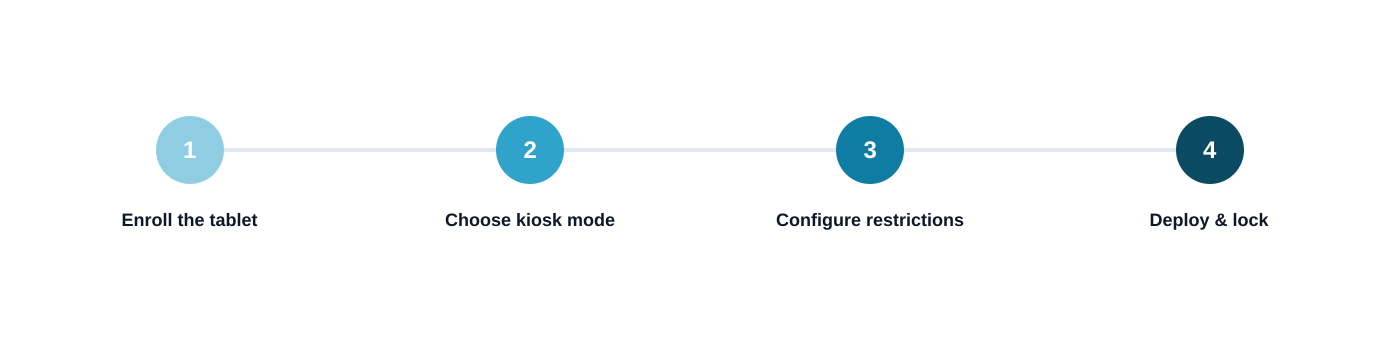
- 1
Enroll the tablet
Bring the tablet under management — scan a QR code during setup for a one-off device, or use zero-touch/Knox Mobile Enrollment for provisioning tablets at scale before they even ship to their final location.
- 2
Choose single-app, multi-app, or browser mode
Pick the kiosk mode that matches the job, based on the comparison above. This choice determines what configuration options you see next.
- 3
Add the approved app or website
Select the one app for single-app mode, the approved set for multi-app mode, or the allowlisted URL(s) for browser mode.
- 4
Configure restrictions
Lock down what's not explicitly needed — hide the status bar and notification shade, disable Wi-Fi/Bluetooth changes if the network is already set, and block factory reset.
- 5
Deploy the profile
Apply the kiosk profile to the tablet (or a group of tablets, for a multi-location rollout) and push it over the air.
- 6
Verify it's locked down
Confirm the tablet boots straight into the kiosk app, that the home/recent-apps buttons don't work, and that the console shows the device as compliant.
Tablet-Specific Considerations
A tablet kiosk deployment has a few practical wrinkles that a phone-in-a-pocket deployment doesn't:
Mounting and stands
Most tablet kiosks run in a fixed stand or wall mount — decide on hardware before deployment, since some mounts restrict access to physical buttons you may need for setup.
Orientation lock
Lock the tablet to the orientation the mount and app actually expect, so a bump or a reboot doesn't leave the display sideways.
Continuous charging
Kiosk tablets typically run 24/7 — plan for a mount or cable routing that keeps the tablet charging without exposing the port to tampering.
Screen timeout and sleep
Disable or extend the sleep timeout for public-facing kiosks so the screen doesn't go dark between uses — a black screen reads as "broken" to a customer.
Testing and Exiting Kiosk Mode
Before you consider the rollout done, actually try to break it: attempt to reach the home screen, pull down the notification shade, and reboot the tablet to confirm the kiosk app relaunches automatically rather than dropping back to a normal home screen.
To exit kiosk mode when you genuinely need to — for maintenance, a configuration change, or retiring the tablet — enter the administrator PIN directly on the device, or send an exit/unlock command from the MDM console if the tablet is offsite. Both paths require administrator access; there's no user-facing way out by design.
Single-App vs. Multi-App: Which Should You Choose for a Tablet?
If you're still deciding, the honest default is: start with single-app mode unless you have a specific reason not to. It's simpler to configure, easier to troubleshoot, and gives a user zero surface area to wander off-task. Multi-app mode earns its complexity when the tablet genuinely needs to switch between a few different tools — a check-in app and a payment app, for example — rather than as a default "just in case" choice. For the deeper technical walkthrough of single-app mode specifically, including exactly what it disables and how to troubleshoot it, see single-app kiosk mode on Android: setup guide. For the broader concept and how kiosk lockdown fits into the rest of your fleet's management, see what is kiosk lockdown.
How LimaxLock Locks Down Android Tablets
LimaxLock enrolls tablets the same way as phones, rugged handhelds, and POS terminals — through the same console, with kiosk mode enforced at the Android Enterprise (OS) level rather than an accessibility-permission workaround a user could disable. Single-app, multi-app, and browser mode are all included standard, configured once and pushed to one tablet or an entire fleet, with real-time compliance status and remote commands (lock, restart, sync) if something needs attention. Managing more than a handful of kiosk tablets across locations? See self-service kiosk management for the fleet-operations layer — monitoring, updates, and session resets — that keeps a tablet deployment reliable past day one.
Frequently Asked Questions
Yes. Samsung tablets enroll through the same Android Enterprise flow as any other Android device, and on Samsung hardware specifically, LimaxLock also uses Samsung Knox to apply additional hardware-level restrictions on top of the standard kiosk lockdown.