Self-Service Kiosk Management: Software & Best Practices
Deploying a self-service kiosk is the easy part. Managing a fleet of them — remote monitoring, uptime, session resets, updates — is what determines whether they stay reliable. Here's how it's done.
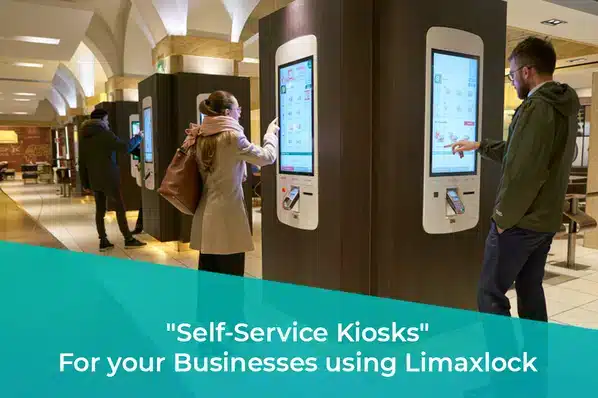
A self-service kiosk is easy to deploy once — a device, an app, a location. The hard part is keeping a fleet of them reliable: catching a crashed device before a customer does, pushing an update across every location without a truck roll, and knowing which kiosk in which store is actually having problems. That's what self-service kiosk management software is for.
What Self-Service Kiosk Management Actually Covers
Remote monitoring
Real-time visibility into every kiosk's status across every location, from a single dashboard.
Centralized updates
Push app, content, or OS updates to the entire fleet — or a specific location — without a site visit.
Crash & auto-recovery
A crashed or force-closed kiosk relaunches its locked session automatically, minimizing downtime before anyone notices.
Session reset between users
Each customer interaction starts from a clean state — no previous order, login, or form data carried over.
Usage analytics
Session counts, duration, and error rates per device, surfacing which kiosks or locations need attention.
Remote troubleshooting
Diagnose and often resolve issues from the console, reserving site visits for genuine hardware problems.
Where Self-Service Kiosks Are Used
The management challenge looks the same everywhere, even though the use case varies by industry:
- Healthcare — patient check-in, appointment scheduling, and payment kiosks.
- Travel & hospitality — airport/hotel check-in, wayfinding, and booking kiosks.
- Restaurants — self-ordering and pay-and-go kiosks reducing counter wait times.
- Banking — balance checks, deposits, and account services outside teller hours.
- Retail — self-checkout, price checking, and in-store wayfinding.
- Offices — visitor check-in, document printing, and internal HR self-service.
For the retail-specific angle on why this improves customer experience, see enhancing customer experience with kiosk mode in retail. Regardless of industry, the underlying device needs the same lockdown foundation — see what is kiosk lockdown — and, for anything public-facing, the session-security practices in how to secure public-facing devices with a kiosk browser.
Managing a Kiosk Fleet: What to Get Right
- 1
Lock every device down
Every self-service kiosk should run in kiosk mode — single- or multi-app depending on its job — so it can only do what it's meant to.
- 2
Enroll in remote monitoring
Connect every kiosk to a central console before it goes live, not after the first support call.
- 3
Configure auto-recovery
Set the locked app to relaunch automatically after any crash or restart, so a single glitch doesn't take a kiosk offline until someone notices.
- 4
Set session resets
Clear session data (cart contents, form entries, login state) between customer interactions automatically.
- 5
Review analytics regularly
Check uptime, error rates, and usage patterns on a set cadence — don't wait for a customer complaint to find a problem.
LimaxLock for Self-Service Kiosk Fleets
LimaxLock manages a fleet of kiosks from one dashboard: real-time status and remote troubleshooting, centralized app and content updates, automatic session resets, and crash recovery that relaunches a locked session without a site visit — the operational layer that keeps a kiosk deployment reliable past day one.
Frequently Asked Questions
Usually one of three things: an app or browser crash with no automatic recovery, a device stuck outside its locked session after a restart, or a connectivity drop with no offline fallback. All three are addressable through kiosk management software rather than requiring a site visit.