Single App Kiosk
Run only one application.
LimaxLock is a centralized kiosk solution that protects dedicated Android smartphones, tablets and rugged devices by limiting access to one application, approved business apps or restricted websites - with settings and device functions controlled remotely from one dashboard.
Google EMM Partner












Kiosk lockdown software restricts an Android device to the apps, websites and functions you approve, blocking system settings and everything else. This Android kiosk lockdown software applies and maintains those controls remotely across phones, tablets, rugged devices and POS terminals.
Kiosk lockdown is one part of the platform: LimaxLock pairs it with full Android MDM, mobile application management, rugged device management, POS device management and a secure kiosk browser. For experience and configuration options, explore our dedicated-device configuration solution.
Run only one application.
Allow selected business apps.
LimaxLock
Kiosk Control
Restrict browsing to approved websites.
Run unattended displays.
Block Settings
Hide System UI
Auto Launch Apps
Prevent Exit
Remote Control
Configure a device once and use the same kiosk solution to enforce consistent restrictions across your entire fleet from the LimaxLock console - no add-ons or separate modules to buy.
Monitor kiosk status, apps, connectivity and device health while applying changes remotely to one device or an entire fleet.
Secure any Android phone or tablet around one application, an approved business toolset or an allowlist of websites - enforced by Android and managed remotely.
Prevent unauthorized device resets.
Stop access to notifications and quick settings.
Prevent changes to system configuration.
Control navigation and supported hardware buttons.
Prevent unwanted connectivity changes.
Restrict screen capture where required.
Keep required business applications installed.
Allow or restrict camera access based on the use case.
Evaluate the complete behavior, not just the first screen. This matrix separates enforced controls, administrator recovery and the production checks that should be completed during a pilot.
| Control area | LimaxLock behavior | Administrator path | Pilot validation |
|---|---|---|---|
| Application access | Keep one application available or expose only an approved business set. | Change the approved set or issue an authorized exit remotely. | Test background services, deep links and every app dependency. |
| Restart continuity | Launch the assigned application after boot and relaunch it after a crash or power interruption. | Restart, sync or replace the assigned profile from the console. | Test cold boot, scheduled restart, app update and power recovery. |
| System controls | Restrict Settings, system bars, navigation, screenshots and supported hardware functions. | Adjust the restriction profile for one device or a managed group. | Confirm each control on the exact Android version and OEM build. |
| Reset protection | Block user-initiated factory reset on fully managed hardware and retain organizational control. | Use approved enrollment and recovery procedures when hardware must be repurposed. | Verify recovery, unenrollment and ownership-transfer procedures. |
| Restricted web access | Limit browsing to one website or an approved allowlist with browser controls hidden. | Update allowed destinations remotely without handling the device. | Test authentication, redirects, downloads, sessions and offline behavior. |
| Application lifecycle | Install, update, retain or remove required business applications remotely. | Push a new version or resync policy from the central console. | Test staged updates, rollback needs and behavior during poor connectivity. |
Compatibility note: available restrictions vary by Android version, manufacturer and enrollment method. Confirm the exact production combination during the free trial.
Enroll one device or a few thousand, apply the kiosk profile automatically and let every device come online already locked down.
Enroll company-owned devices as fully managed, with OS-level kiosk enforcement.
Provision compatible devices during setup, or scan a QR code to enroll in seconds.
Register thousands of devices at once, including Samsung Knox Mobile Enrollment.
Push kiosk profiles, apps and restrictions over the air - no site visit, no handling.
LimaxLock supports Android phones, tablets, rugged handhelds and POS terminals. The deepest dedicated-device controls require company-owned hardware provisioned as a fully managed Device Owner device.
Use fully managed enrollment for OS-level restriction enforcement. A work profile is intended for lighter application and data separation, not the same dedicated-device control.
Use QR provisioning for hands-on setup. Android zero-touch and Samsung Knox Mobile Enrollment require eligible, registered hardware and reseller preparation.
Control availability can differ by Android release, device manufacturer and firmware. Validate the exact model and build that will be purchased or redeployed.
Test restart, app updates, weak connectivity, offline operation and administrator exit before assigning the profile across a production fleet.
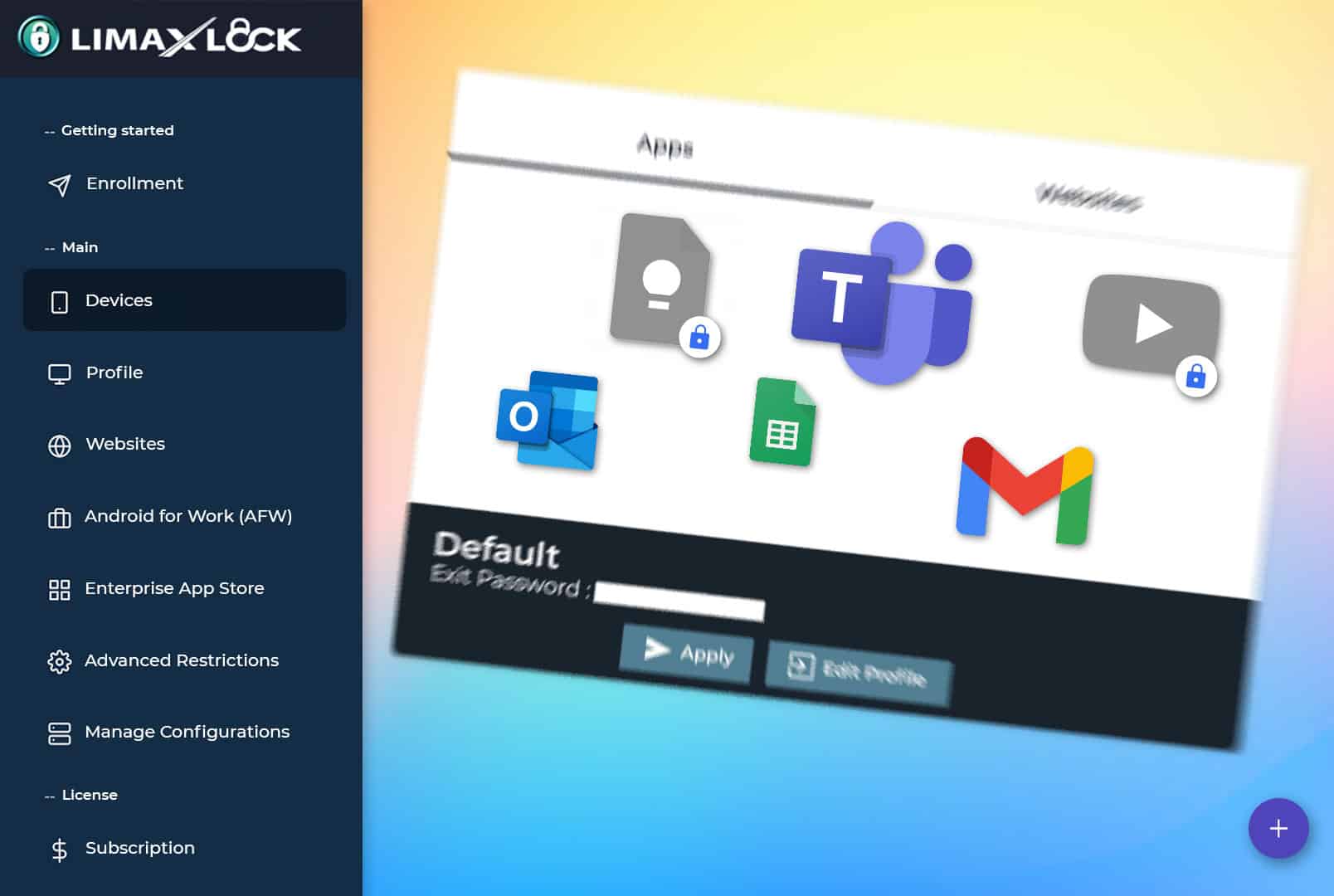
Review the management interface alongside the device experience, then reproduce the same controls on a pilot device during the free trial.
Give IT teams the device-level enforcement, account protection and audit visibility they need to manage company-owned Android hardware responsibly.
On fully managed devices, Android’s own lock task mode enforces the kiosk - it holds even if the app is killed.
A factory reset from recovery doesn’t produce a clean device - it comes back tied to your organization.
The account that can lock and wipe your fleet is protected by more than a password.
Owner, admin, helpdesk, viewer - give each teammate exactly the access they need, nothing more.
Every admin action is logged - who issued it, what it did, which device, and when.
Root detection, OS patch level and encryption status reported per device - drift shows up as an alert.
The same kiosk profiles run retail terminals, warehouse scanners, clinical tablets and unattended displays.
Kiosks that take payments, scan stock or check patients in cannot go dark - so the platform around them is built to keep them running.
Configure, troubleshoot and update kiosks without ever visiting them.
OS-level restrictions, blocked settings and policies enforced on every device.
Apply one kiosk profile to a single device or an entire fleet of thousands.
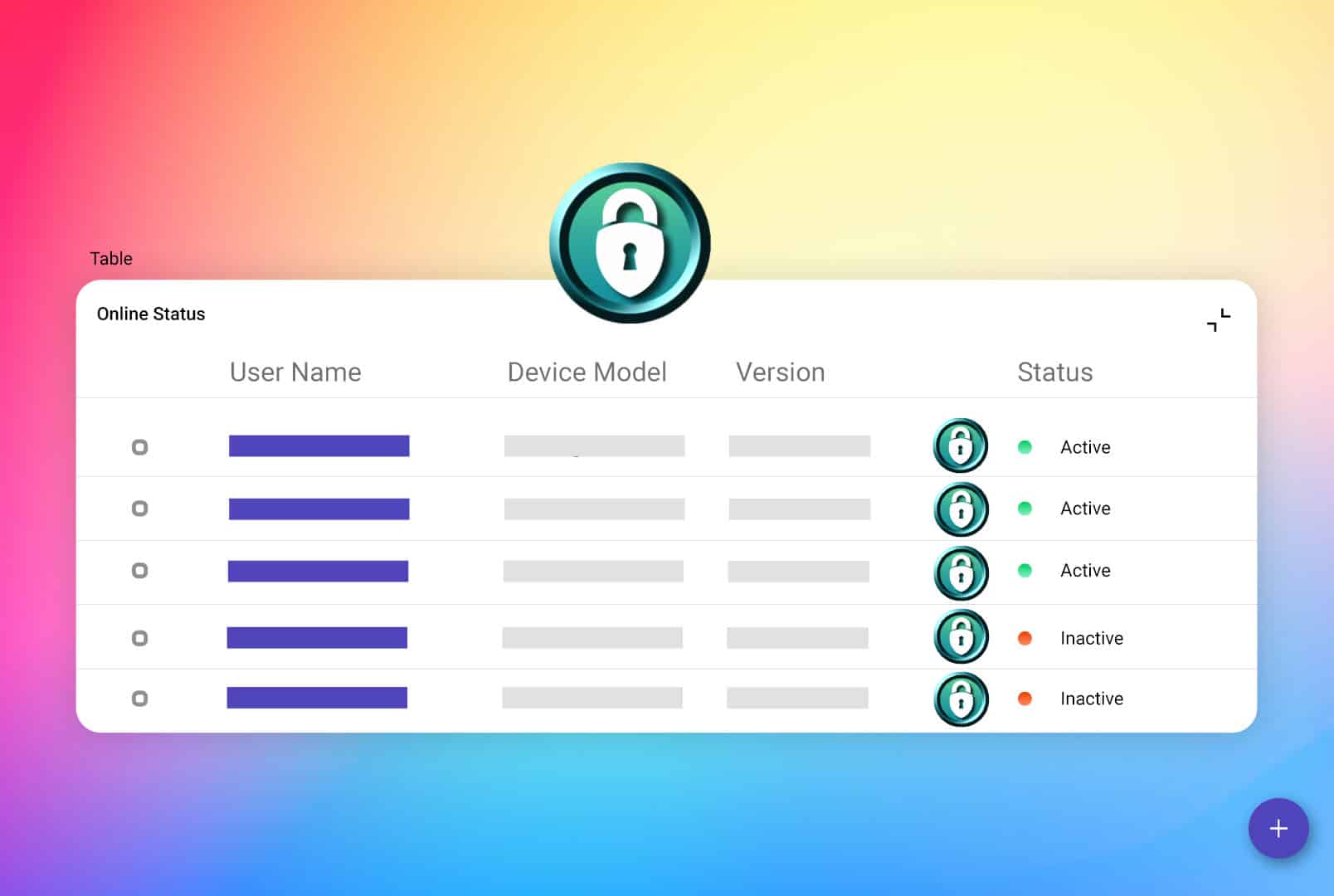
See which kiosks are online, offline or need attention before users report it.
Purpose-built for phones, tablets, rugged handhelds and POS terminals.
Kiosk lockdown, MDM, app management and monitoring in one console.
Verified LimaxLock adoption figures provide measurable context beyond the product features.
Four steps from unboxing to locked-down kiosk - and the same flow covers phones, POS terminals and rugged devices.
Add the Android device to LimaxLock using your preferred enrollment method.
Choose one application, an approved app set or restricted web access.
Select the apps, websites, system settings and device functions users can access.
Apply the profile and manage the kiosk throughout its lifecycle.
Kiosk lockdown is one part of the platform - every solution below runs on the same enrollment, policies and console.
Enroll, secure and manage entire Android fleets from one console.
ExploreProvision, configure and operate business Android devices across every ownership mode.
ExploreRestrict Android browsing to the websites you approve.
ExploreSecure POS terminals, kiosks and shared devices across locations.
ExploreKiosk lockdown software restricts an Android device to specific apps, websites or functions, preventing users from reaching unauthorized settings, applications and device features. LimaxLock turns phones, tablets, rugged devices and POS systems into secure, dedicated-purpose devices, all managed remotely.
LimaxLock applies restrictions through Android Enterprise on fully managed hardware. The operating system keeps the assigned application or approved toolset available, restores the policy after reboot and prevents users from dismissing the controls.
Enroll the tablet in LimaxLock, create a lockdown profile and select one application, an approved app set or restricted web access. Exiting requires an administrator password or one-time code, and the same policy can protect phones, rugged devices and POS terminals.
Yes. You can present a managed launcher containing a selected set of work apps while hiding every unapproved application and system area. Administrators can change that approved set remotely.
Screen pinning is a temporary consumer feature that users can exit with a button combination and that does not persist after reboot. LimaxLock enforces dedicated-device restrictions through the operating system, restores them after restart and lets administrators configure and monitor hardware centrally.
Yes. Every kiosk is managed from the LimaxLock dashboard - change the app set or restrictions, lock, restart, sync or update devices, and push new profiles over the air to one device or the whole fleet.
Yes. Kiosk profiles block the Android settings app and can disable Wi-Fi, Bluetooth, display and other system controls, so users cannot change how the device is configured.
Yes. The kiosk browser runs the tablet full-screen on a single website or an allowlist of approved websites, with browser controls hidden - ideal for web-based POS, forms and check-in flows.
A single website kiosk locks the device to one web address in a full-screen browser, with the address bar, tabs and navigation hidden, so users can only use that page. It is ideal for a web-based POS, booking or check-in workflow. When you need more than one destination, LimaxLock also supports an allowlist of approved sites.
Yes. The kiosk app relaunches automatically after boot, crash or power cycle, and scheduled reboots keep unattended kiosks healthy without a site visit.
Yes. LimaxLock manages rugged handhelds, scanners and vehicle-mounted devices the same way as phones and tablets, with the same lockdown profiles and OS-level enforcement.
LimaxLock uses simple per-device pricing that scales from a handful of kiosks to a fleet of thousands, and every plan includes kiosk lockdown, remote management and monitoring. Start with a 14-day free trial - no credit card required - and enroll real devices before you subscribe.
Any Android smartphone, tablet, rugged device or POS terminal running standard Android. Provision company-owned devices as fully managed for OS-level kiosk enforcement, or add a work profile for lighter cases.
Start a free 14-day trial, enroll your first device and lock it to a single app, an approved set or a secure browser - all managed remotely from one console.
14-day free trial•No credit card required•Set up in minutes