How to Secure Public-Facing Devices With a Kiosk Browser
Information kiosks, self-service stations, and check-in screens are used by strangers all day. Here's the step-by-step setup for locking them down with a kiosk browser.
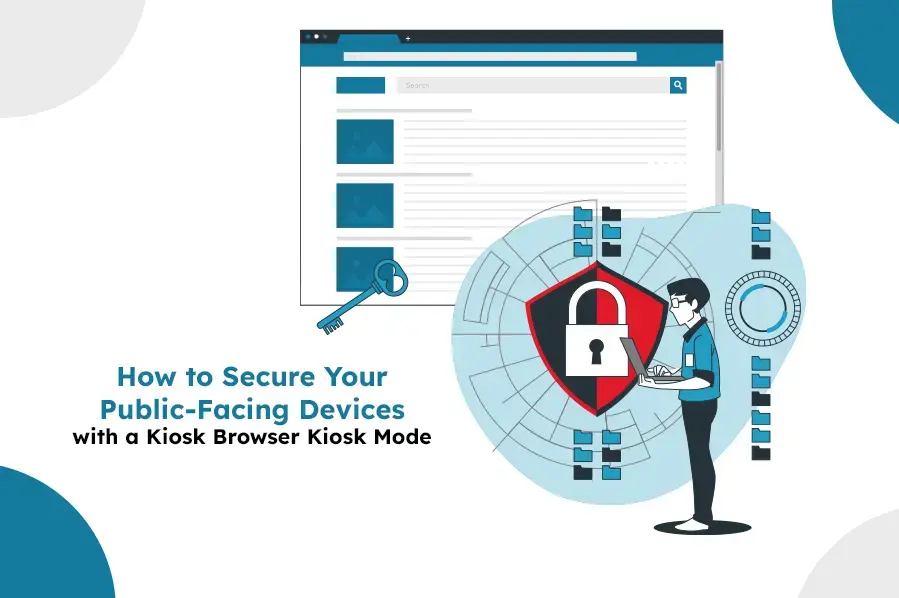
An information kiosk, self-service check-in, or airport directory screen gets used by hundreds of strangers a day, none of whom have any reason to respect the device. That's a fundamentally different threat model than an employee's phone: no accountability, no training, and constant physical access by the public. Locking these devices down with a kiosk browser is how businesses keep them doing exactly one job, safely, indefinitely.
What a Kiosk Browser Actually Restricts
Whitelisted navigation
Only pre-approved URLs load; everything else is unreachable, not just hidden behind a warning.
OS-level lockdown
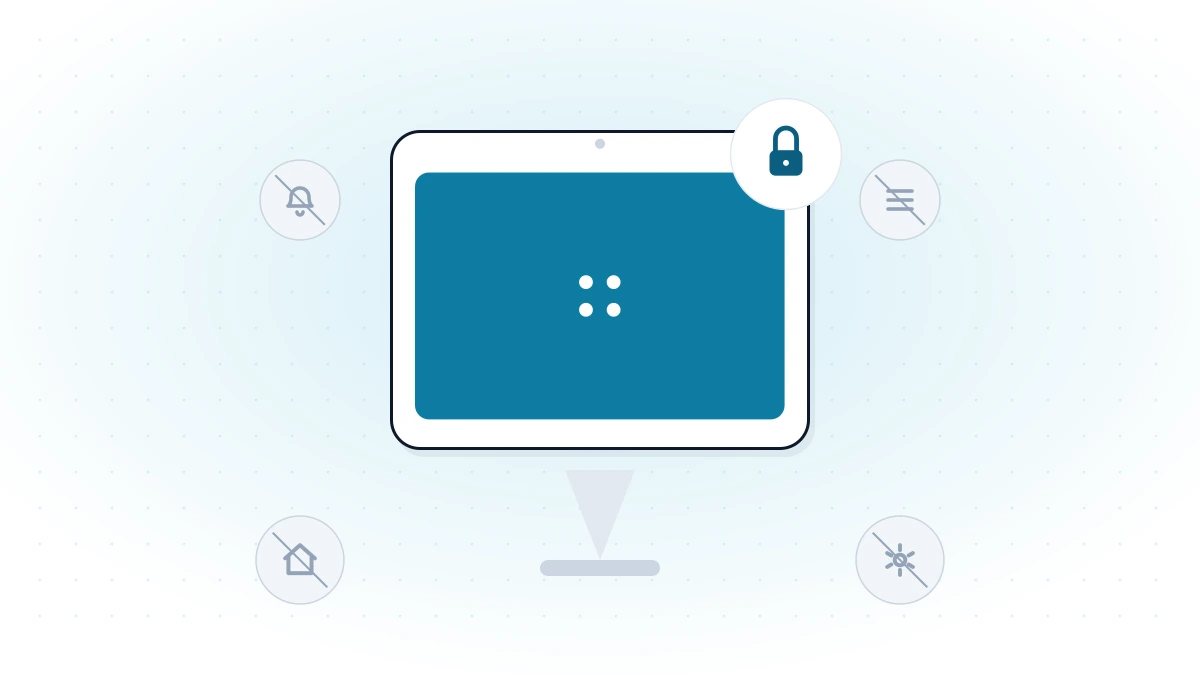
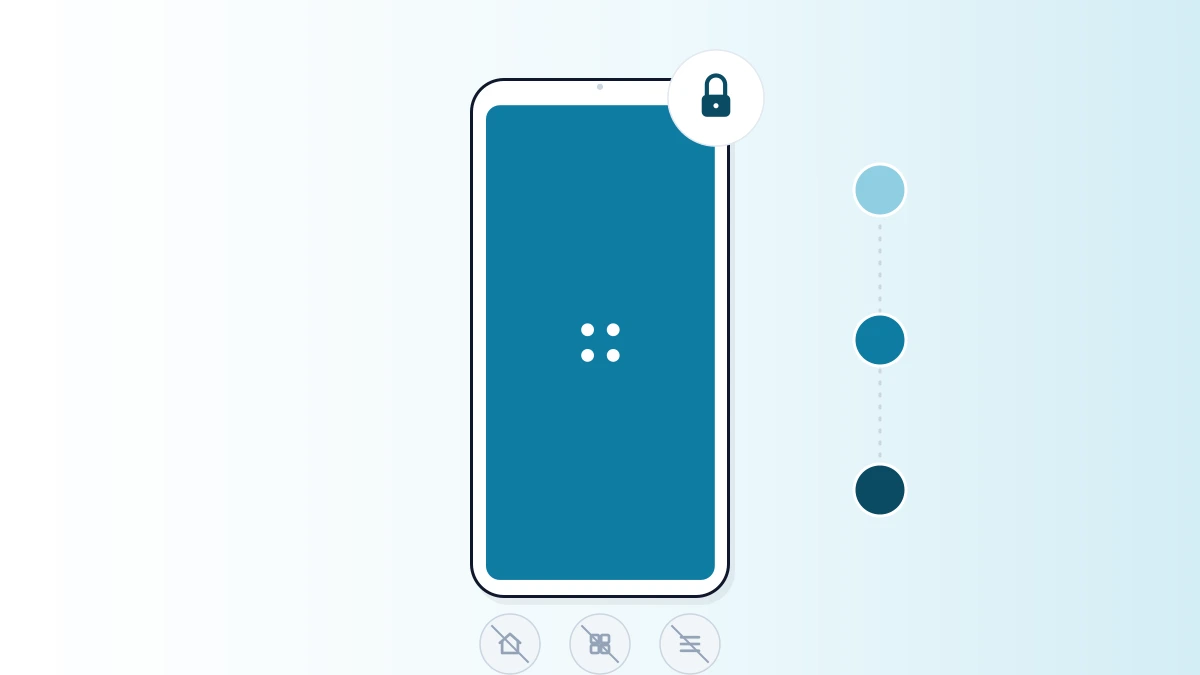
Home, recent-apps, and notification access are disabled so a user can't back out to the underlying device.
Automatic session reset
History, cookies, and form data clear automatically between users or after a period of inactivity.
Content filtering
Even within whitelisted domains, filtering can block categories of content that shouldn't appear on a public screen.
Remote monitoring
Admins see device status and can push updates or restart a misbehaving kiosk without a site visit.
Setting Up a Secure Public Kiosk
- 1
Define the access policy
Decide exactly which websites or web apps the kiosk needs — a check-in form, a directory, a specific ordering app — and whitelist only those.
- 2
Enable OS-level kiosk lockdown
Lock the device to the kiosk browser app specifically, disabling home/recent-apps buttons so the browser can't be exited without admin credentials.
- 3
Configure automatic session resets
Set history, cookies, and cache to clear after each use or a short inactivity timeout, so no user's data carries over to the next person.
- 4
Add content filtering
Layer content filtering on top of the whitelist for any site broad enough to host user-generated or unpredictable content.
- 5
Enroll in remote monitoring
Connect the device to an MDM console so IT can see its status and push fixes without a physical visit — critical for kiosks spread across multiple locations.
- 6
Secure it physically
Mount or enclose the hardware itself — software lockdown doesn't stop someone from walking off with an unsecured tablet.
Best Practices for Ongoing Security
- Review the website whitelist periodically — remove anything no longer needed rather than letting it accumulate.
- Patch the OS and kiosk browser on a regular schedule; a public device is a persistent target.
- Audit device logs periodically to catch unusual usage patterns across a fleet of kiosks.
- Train on-site staff on what to do if a kiosk appears tampered with or is behaving unexpectedly.
- Re-test the lockdown periodically — attempt to exit the kiosk yourself to confirm it still holds.
For the mechanics of how a kiosk browser's whitelist and session controls work, see what is a kiosk browser. For managing a whole fleet of these devices rather than a single kiosk, see self-service kiosk management, and for the device-lockdown layer underneath the browser itself, see what is kiosk lockdown.
LimaxLock for Public-Facing Devices
LimaxLock locks Android devices to a kiosk browser at the OS level — surviving restarts and force-close attempts — with a remotely managed website whitelist, automatic session resets, and fleet-wide monitoring so a public kiosk in any location stays compliant without a site visit.
Frequently Asked Questions
A public kiosk is used by strangers with no accountability and no training — anyone who walks up can try to exit the browser, access settings, or leave content behind for the next stranger. The security bar is higher: session resets, hardware-button lockout, and content filtering matter far more than they do on an employee's own device.