Android Kiosk Browser: Lock Devices to Approved Websites
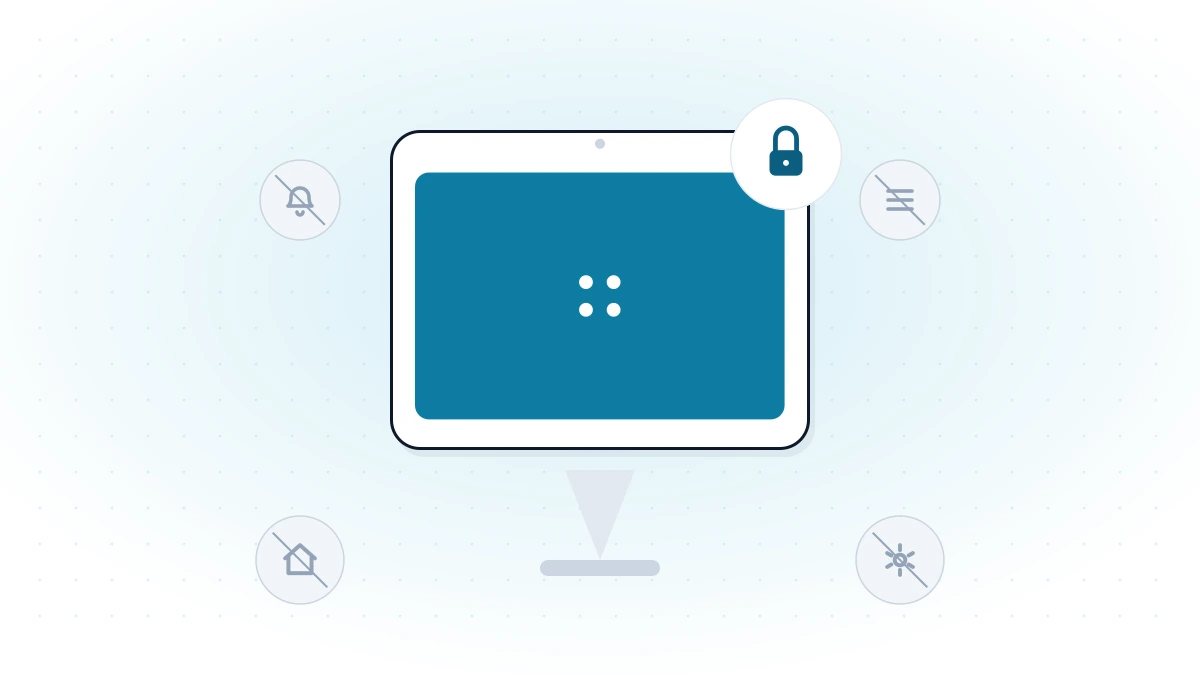
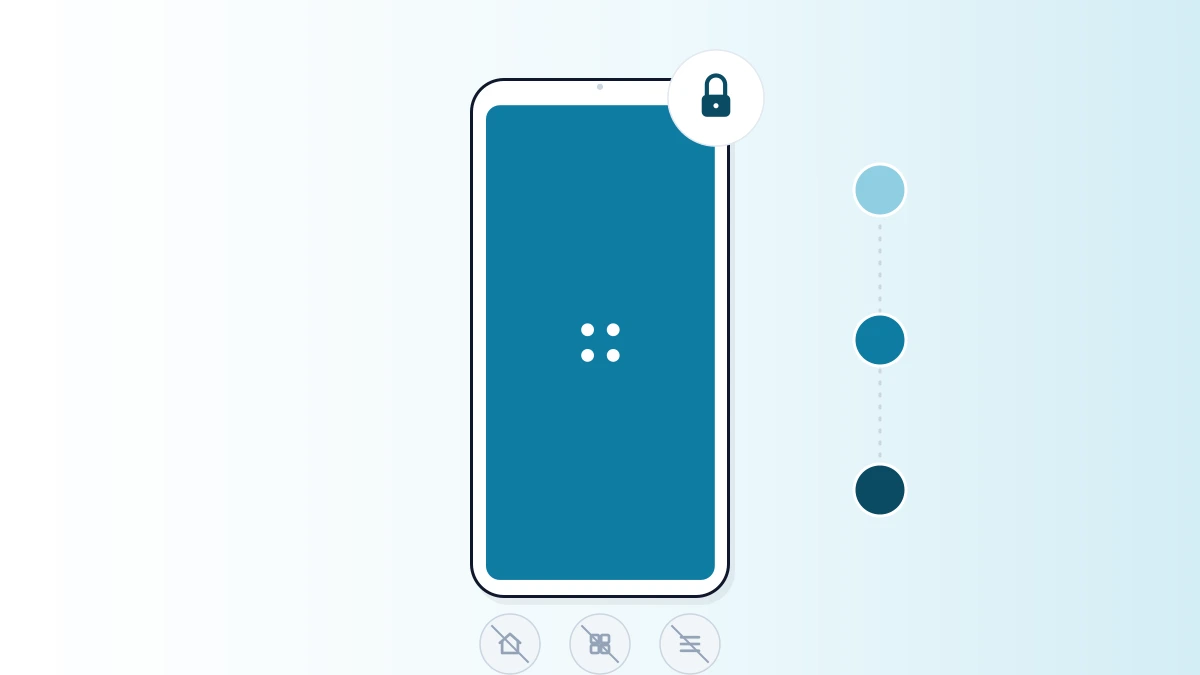
A kiosk browser locks an Android device to a whitelist of approved websites, blocking everything else — settings, downloads, other apps. Here's how it works and what to look for.
An Android device left on the open internet is a liability on a shared or public-facing device — anyone can browse to a malicious site, download something they shouldn't, or simply wander off-task. A kiosk browser removes that risk by restricting the device to a whitelist of approved websites and nothing else.
How an Android Kiosk Browser Works
LimaxLock's kiosk browser is a restricted web browser pre-configured with an administrator-defined whitelist. Instead of blocking a list of bad sites — which can never be complete — it inverts the model: only whitelisted sites load, and everything else is unreachable by default. Whitelisted sites can be in-house tools built for a specific workflow or any public website the business needs, and the list updates remotely without touching the device in person.
Normal Android browser
- Any website reachable
- Browser settings open
- Downloads allowed
- Can switch to other apps
LimaxLock kiosk browser
- Only approved websites
- Settings locked
- Downloads blocked
- Navigation controlled
The Importance of Using a Kiosk Browser for Business
Today, a browser is an indispensable tool for executing all business activities. It allows for easy access and flexibility across all platforms, making it an important tool for performing crucial activities. However, using a browser to surf unwanted, unauthorized or improper websites can lead to decreased productivity, countless distractions and, in the worst cases, make your system susceptible to cyber threats.
When a device on the open internet is used for the wrong things, organizations typically see two consequences:
Cyber threats and data risk
An unrestricted browser can reach any website, which puts confidential data at risk — a user might click a malicious link, download an infected file, or install a vulnerable plug-in without realizing it. A whitelist-only kiosk browser removes that exposure by making anything outside the approved list unreachable in the first place.
Lost productivity
An open browser on a shared or work device invites distraction — social media, unrelated browsing, anything but the task the device is meant for. Restricting the device to only the websites its job requires removes that option entirely, rather than relying on policy alone.
Benefits of Secured Browsing
- Whitelisting productive business websites while blocking all harmful ones
- Parental control and web content filtering for business purposes
- Protection against malware, viruses, Trojans and phishing scams
- Restricted access to settings and unauthorized downloads
- Multi-user access on a single device with appropriate security
- Streamlined accessibility to mission-critical web pages
Features to Look For in a Kiosk Browser
A pre-configured whitelist is the baseline — the features below are what separate a genuinely secure kiosk browser from a browser that just hides the address bar. See our full breakdown of features to look for in a kiosk browser for a deeper comparison.
Password protection
Restrict access to the browser and its settings with a password.
Notification control
Disable web notifications so nothing interrupts the kiosk session.
Cache & history control
Clear cache, cookies and history automatically between sessions.
Remote whitelisting
Pre-configure and update the approved website list remotely.
Location tracking
Track devices remotely to keep tabs on where kiosks are deployed.
Policy scheduling
Dynamically change policies and restrictions as needs evolve.
A kiosk browser is usually one piece of a broader device lockdown, not a standalone tool — see what is kiosk lockdown for how app-level and browser-level restrictions combine on the same device. If the specific need is blocking categories of sites rather than running a dedicated kiosk session, see how to block websites on Android for the step-by-step setup.
Frequently Asked Questions
Kiosk browser mode locks an Android device to a set of approved websites, restricting navigation, browser settings and downloads so the device can only be used for its intended purpose.