Android Enterprise Device Management: A Practical Guide
Android Enterprise gives IT three real ways to enroll a device — zero-touch, EMM token, and work profile — each suited to a different ownership model. Here's how each one actually works.
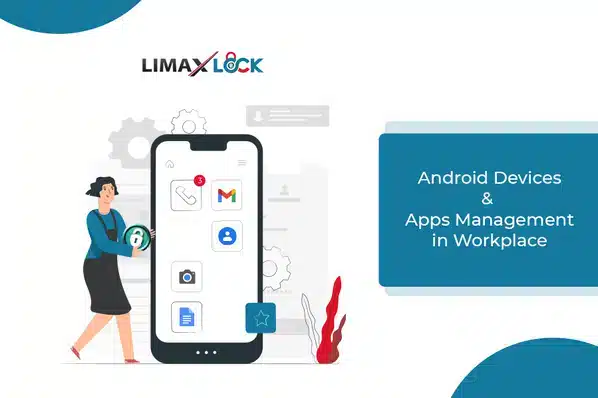
Android Enterprise — the modern successor to what was originally called Android for Work — is the framework that makes device management actually work at the OS level, rather than through workaround permissions. It gives IT three distinct ways to bring a device under management, and picking the right one depends entirely on who owns the device.
The Three Android Enterprise Enrollment Methods
| Best for | Admin effort | Device control | |
|---|---|---|---|
| Zero-touch enrollment | Corporate-owned, bought through a participating reseller | One-time portal setup | Full device |
| EMM token enrollment | Corporate-owned, any Android 6.0+ device | Share a QR code / token | Full device |
| Work profile (BYOD) | Employee-owned devices | Self-enrollment by the user | Isolated container only |
Zero-touch enrollment
Devices are enrolled automatically the moment they're activated, with no admin or user action required beyond a one-time setup in the Zero-Touch portal. This is the fastest path for corporate-owned devices bought through a participating reseller — device information (or reseller account) is registered once, and every matching device self-enrolls on first boot.
EMM token enrollment
The fallback for corporate-owned devices outside the zero-touch channel: an administrator shares a QR code and an EMM/DPC token, and the user scans it during setup. It requires slightly more interaction than zero-touch but works on any device running Android 6.0 or later, regardless of where it was purchased.
Both zero-touch and EMM token enrollment produce a work-managed device — full enterprise control over the entire device, appropriate for hardware the business owns outright.
Work profile (BYOD)
For employee-owned devices, self- or invite-based enrollment creates a work profile: a separate, encrypted container (marked with a briefcase icon) that holds corporate apps and data. IT has full control inside the container and zero visibility outside it — personal photos, messages, and apps stay untouched. See how BYOD and MDM work together for the policy side of this setup.
What Android Enterprise Management Controls
- Policy and restrictions — kiosk mode, Factory Reset Protection, and granular controls like disabling the camera, microphone, or clipboard sharing, enforced at the OS level.
- Silent app deployment — store and in-house apps install, update, and remove without user interaction, using managed Google accounts so there's no per-device Play Store setup.
- Encryption — native OS encryption enforcement from Android 7.0 onward; LimaxLock's own encryption policy extends coverage back to Android 4.0, including SD card storage.
For the device-lockdown side of this — locking a work-managed device to a single app or approved set — see what is kiosk lockdown. For a full checklist of what to evaluate when choosing a platform to run all of this through, see the best MDM software for securing and managing mobile devices.
LimaxLock and Android Enterprise
LimaxLock is built directly on Android Enterprise's management APIs — supporting all three enrollment paths, silent app deployment through a managed enterprise app store, and encryption enforcement back to Android 4.0 — so policy is enforced by the OS itself rather than a permission a user (or malware) could disable.
Frequently Asked Questions
A work-managed device (enrolled via zero-touch or EMM token) puts the entire device under enterprise control — it's meant for corporate-owned hardware. A work profile creates an isolated, encrypted container for corporate apps and data on an otherwise personal device, leaving everything outside it under the employee's control — it's the standard for BYOD.