How to Update Android POS Apps Across Multiple Stores
Test a POS release on one terminal, verify the installed version and peripherals, then update each store group and reconcile offline devices.
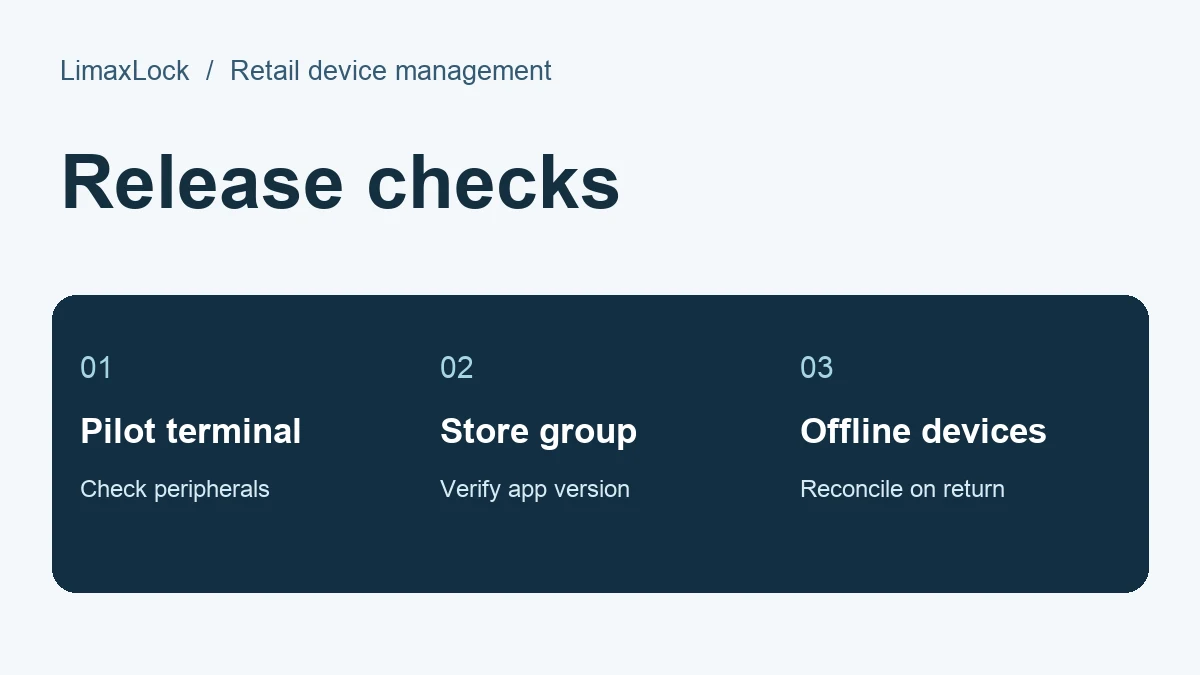
To update Android POS apps across stores, assign the approved release to a pilot group, run a test checkout, then expand to one store group at a time. Close the rollout when the terminals report the expected version and store staff confirm checkout works.
What should you record before a POS update?
Record the app name and package, current and target versions, store group, device model, Android build and connected peripherals. Pick a spare terminal that matches a working lane. A tablet with no scanner or receipt printer can validate installation but tells you little about the counter experience.
Choose a release window with the store manager. Agree who can pause the rollout and what fault would trigger that decision. A pilot receipt failing to print is a reason to investigate even when the app installed successfully.
Deploy the release to a pilot group
- Identify how the app is distributed. Use your approved Managed Google Play release or private APK workflow. Check the package and version against the release your POS vendor approved.
- In your Android app management policy, target the spare terminals. Record the selected group before submitting the change.
- Wait for a connected pilot to report the new version. Open the POS app, scan an item, use the provider’s test transaction flow and print a receipt. Reopen the app and confirm the kiosk policy returns the device to checkout.
- Leave an unaffected store group on the previous release during the pilot. This gives support a comparison if the updated terminals behave differently.
How do you know every store received the update?
Keep a short release register. One row per terminal is sufficient for a small pilot. These are example entries for a target release of 4.8.
| Observed state | Next action | |
|---|---|---|
| Store A · lane 1 | 4.8, test receipt printed | Mark the pilot as passed. |
| Store B · lane 2 | Online, still reporting 4.7 | Check group assignment and installation status. |
| Store B · lane 3 | Offline, last reported 4.7 | Recheck the installed version after reconnection. |
Expand the approved assignment to the next store group. Give each store a contact for reporting checkout faults. If a release breaks a workflow, pause expansion, capture the affected model and version, and use the recovery procedure agreed with the POS vendor. Test recovery on a spare before applying it to trading lanes.
What if a terminal misses the release?
Keep that device on the register as pending. Have the store confirm power and connectivity, check the new last-seen time, then verify the installed version and repeat the checkout test. The offline POS troubleshooting guide walks through the handoff between the store and IT.
For the device profiles and store grouping used throughout this workflow, see Android device management for retail.