Android POS Terminal Offline? A Troubleshooting Checklist
Separate a device connectivity fault from a checkout app or peripheral fault. Use last-seen time and a test checkout to confirm recovery.
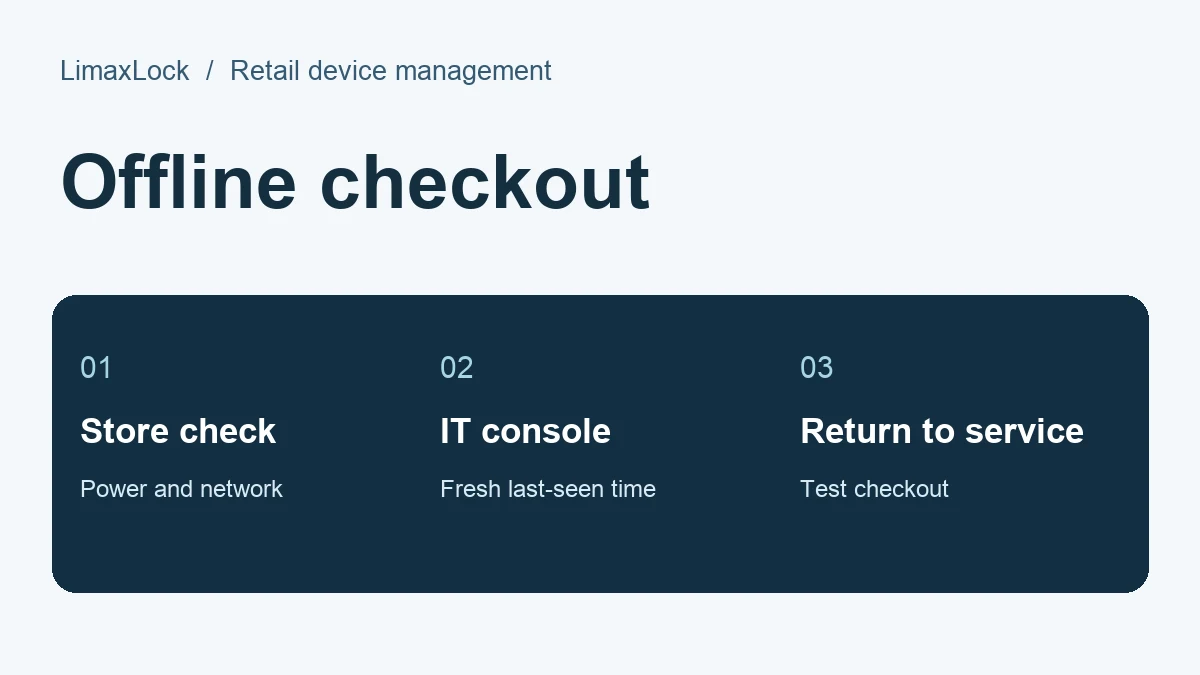
When an Android POS terminal appears offline in MDM, compare the console’s last-seen time with what staff can see at the lane. An offline management signal tells you the terminal has stopped reporting. The checkout app, payment service and receipt printer each need a separate check.
First determine what has stopped working
Ask the store for the location, terminal identifier, time of the last successful checkout and exact on-screen message. Check an adjacent lane on the same network. That comparison helps narrow the investigation before anyone changes the terminal.
| Ask the store | IT follow-up | |
|---|---|---|
| One terminal is dark | Check the approved power supply and dock. | Compare the last report with when the screen went dark. |
| Several lanes stopped reporting | Check whether other store services lost connectivity. | Investigate the shared network before changing individual policies. |
| Device reports online, checkout fails | Capture the app message and affected operation. | Check app version and escalate payment or peripheral faults to the appropriate provider. |
What can store staff check while the terminal is offline?
- Confirm the device has power and the expected store network is available. Follow the store’s normal procedure for reconnecting a terminal.
- Check whether the checkout app opens and whether the problem is limited to scanning, printing or payment. Keep customer and card details out of the incident record.
- If a payment was interrupted, follow the payment provider’s transaction-status procedure before retrying. Use another operating lane according to store policy.
What can IT verify remotely?
Open the correct store group and match the terminal identifier. Record its last-seen timestamp and last reported app version. Compare with a working terminal of the same model. If the device cannot reach the management service, a newly issued command cannot confirm that the lane has recovered.
Once the store restores connectivity, look for a new report. Confirm the terminal is in the expected store group, sync its intended policy and verify the installed app version. If only recently updated lanes are affected, consult the POS app rollout checks before expanding the release.
When is the checkout lane ready to reopen?
The IT check ends when the device reports again with the expected policy and app. The store check ends when staff complete the provider-approved test flow, including the scanner or printer used at that lane. Record both outcomes and the time the lane returned to service. If the console stays offline while checkout works, keep the management incident open and investigate connectivity to the management service separately.
See POS device management for terminal controls and retail fleet management for monitoring devices across stores.